Apple native containers
In WWDC 2025 (June 2025) Apple announced container, it’s a tool optimized for Apple silicon that you can use to create and run Linux containers as lightweight virtual machines on your Mac. The Containerization Swift package is used for low level container, image, and process management.
The tool consumes and produces OCI-compatible container images, so you can pull and run images from any standard container registry. You can push images that you build to those registries as well, and run the images in any other OCI-compatible application.
Quoting from the container Technical Overview to highlight the main architecture differences:
Many operating systems support containers, but the most commonly encountered containers are those that run on the Linux > operating system. With macOS, the typical way to run Linux containers is to launch a Linux virtual machine (VM) that hosts all of your containers.
container runs containers differently. Using the open source Containerization package, it runs a lightweight VM for each container that you create. This approach has the following properties:
- Security: Each container has the isolation properties of a full VM, using a minimal set of core utilities and dynamic libraries to reduce resource utilization and attack surface.
- Privacy: When sharing host data using container, you mount only necessary data into each VM. With a shared VM, you need to mount all data that you may ever want to use into the VM, so that it can be mounted selectively into containers.
- Performance: Containers created using container require less memory than full VMs, with boot times that are comparable to containers running in a shared VM.
I was curious to see how Apple Native Containers fared against Docker so I ran a few tests. Here’s the TL;DR on what I found:
- Design choices translate into very real differences that might make the tool useful for you, or not… the more permissive license can also be a decisive factor.
- Apple Native Containers work as expected and provide the basic functionality to run and manage containers in a modern Mac, however they’re not a drop-in replacement for Docker.
- Ecosystem support is still not up to par, for instance Container-compose is an Open Source project that brings (limited) Docker Compose support, and there’s only experimental support for using the tool with the VS Code Dev Containers extension.
Installing native containers
It’s possible to use brew for the installation, run the following command
to install the Apple Container command-line tool.
brew install container
The CLI manages its own service; run this command to initialize and start the background system:
container system start
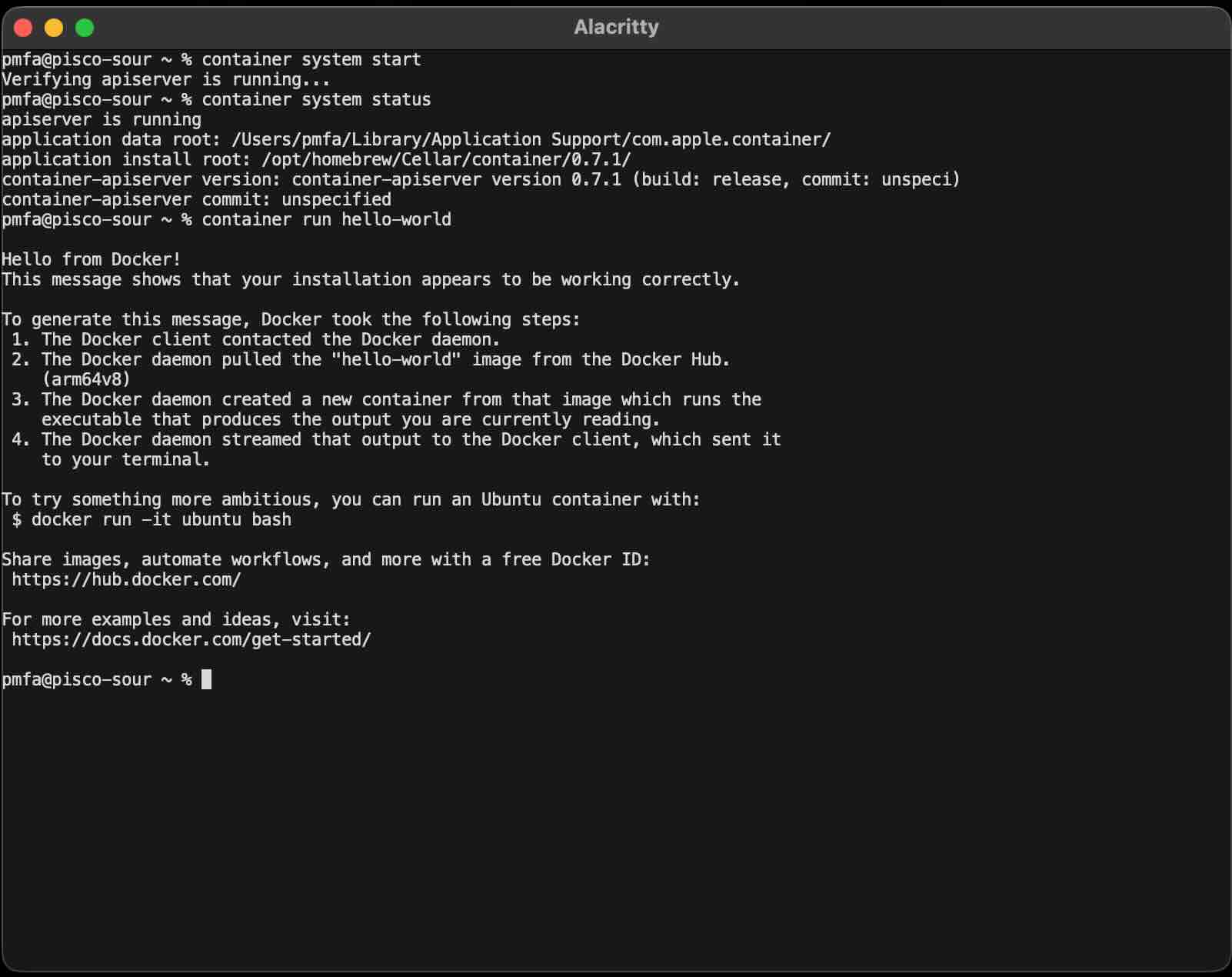
Check the status of the service, and run hello-world.
container system status
container run hello-world
So far, so good!
Comparing the interface
Docker Desktop provides a lot of functionality and unsurprisingly
container covers only a fraction of it. Comparing the output of
docker help and container help makes that immediately obvious.
The key question however is whether the essential functions are there
and working as expected.
Let’s compare the container subcommands with those exposed by docker:
| Apple Containers | Docker Desktop | Compatible | Remarks |
|---|---|---|---|
build: Build an image from a Dockerfile or Containerfile |
build: Build an image from a Dockerfile |
✓ | |
builder: Manage an image builder instance |
builder: Manage builds |
✗ | Totally different purpose |
create: Create a new container |
create: Create a new container |
✓ | |
delete, rm: Delete one or more containers |
rm: Remove one or more containers |
✓ | |
exec: Run a new command in a running container |
exec: Execute a command in a running container |
✓ | |
image, i: Manage images |
image: Manage images |
✓ | The images subcommand doesn’t exist tough |
inspect: Display information about one or more containers |
inspect: Return low-level information on Docker objects |
✓ | Container info only, no other objects |
kill: Kill or signal one or more running containers |
kill: Kill one or more running containers |
✓ | |
list, ls: List running containers |
ps: List containers |
✗ | Different subcommand, but similar options |
logs: Fetch container logs |
logs: Fetch the logs of a container |
✓ | |
network, n: Manage container networks |
network: Manage networks |
✓ | |
registry, r: Manage registry logins |
login: Authenticate to a registry, logout: Log out from a registry |
✗ | Registry manages logins, similar to login/logout |
run: Run a container |
run: Create and run a new container from an image |
✓ | |
start: Start a container |
start: Start one or more stopped containers |
✓ | |
stats: Display resource usage statistics for containers |
stats: Display a live stream of container(s) resource usage statistics |
✓ | |
stop: Stop one or more running containers |
stop: Stop one or more running containers |
✓ | |
system, s: Manage system components |
system: Manage Docker |
✓ | |
volume, v: Manage container volumes |
volume: Manage volumes |
✓ |
The standard options are there, but there’s some minor differences in the
interface. It might be necessary to re-learn some syntax, but it’s nice
to see that some container subcommands have a shorter alias.
Building and running a non-trivial workload
Time to build an run a containerized workload.
I got inspired by a Christmas post I’ve seen on another blog
, and decided to pick up something fun. Let’s start with
the QuakeJS Rootless Project
from JackBrenn. The project
enables playing multiplayer Quake III Arena in a browser with
Podman / Docker. Let’s see if it works with container. The command syntax
to build and start the container was exactly the same as the Docker
instructions.
git clone https://github.com/JackBrenn/quakejs-rootless.git
cd quakejs-rootless
container build -t quakejs-rootless:latest .
container run -d \
  --name quakejs \
  -e HTTP_PORT=8080 \
  -p 8080:8080 \
  -p 27960:27960 \
  quakejs-rootless:latest
Starting from scratch to compare the build times
between docker and container both clocked very similar times,
around 90 seconds. Which makes sense, given they’re both
using the same engine to build their images.
(BuildKit) is an improved backend
that replaced the legacy Docker builder and it’s the
default builder
for users on Docker Desktop, and Docker Engine as of
version 23.0.
The only difference I was able to spot in the output
is that container pulled the BuildKit image before
starting to build the image.
The run step will start a completely local QuakeJS server
running in a container in the background.
Besides running the server engine which hosts the gameworld
for several players, it will serve
a WASM version of Quake III
compiled using emscripten.
No external dependencies, no content servers, no proxies -
just pure Quake III Arena gaming in your browser.
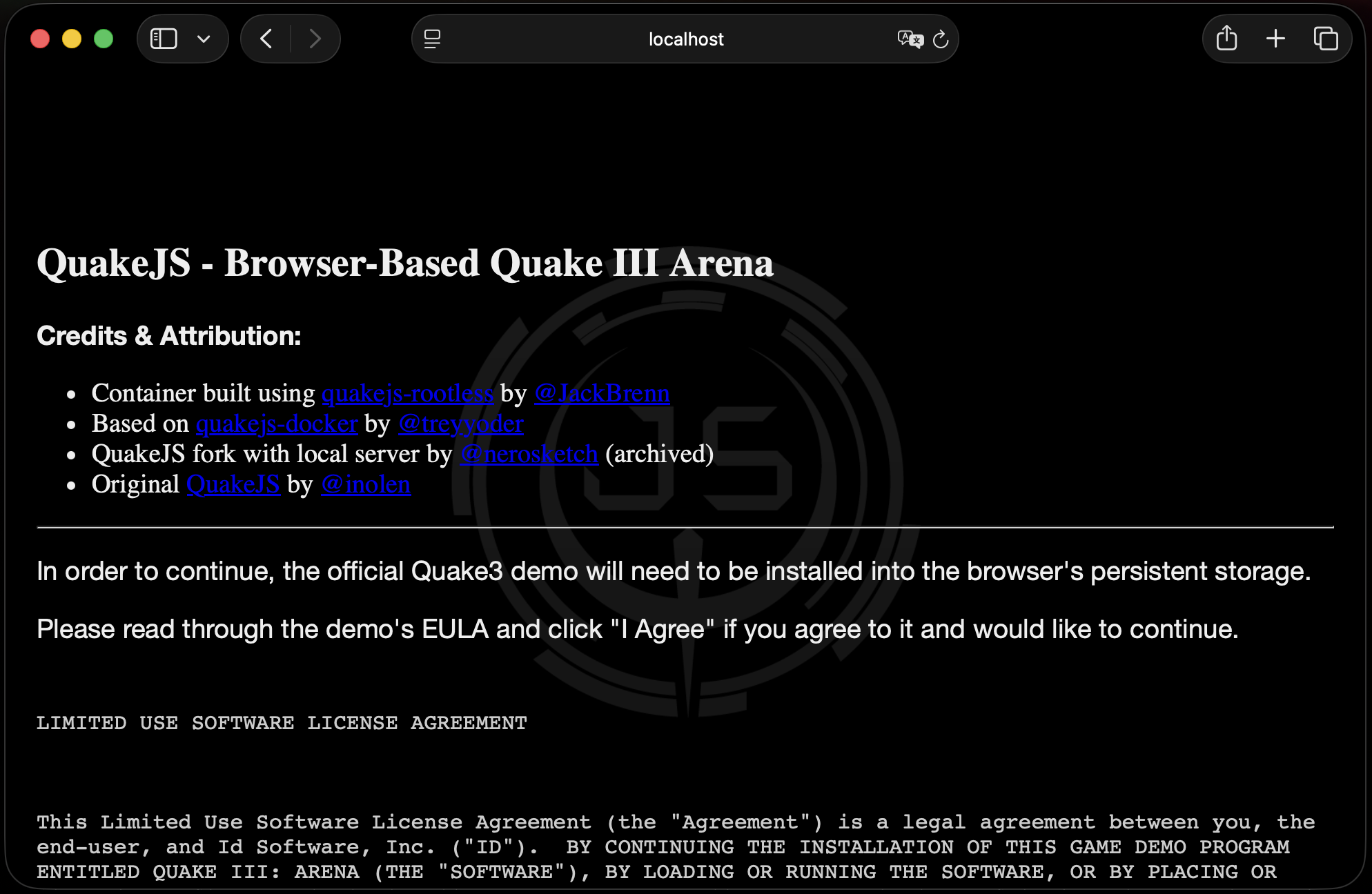
You can use this to host a LAN party anywhere! Point
to localhost:8080 and accept the EULA:
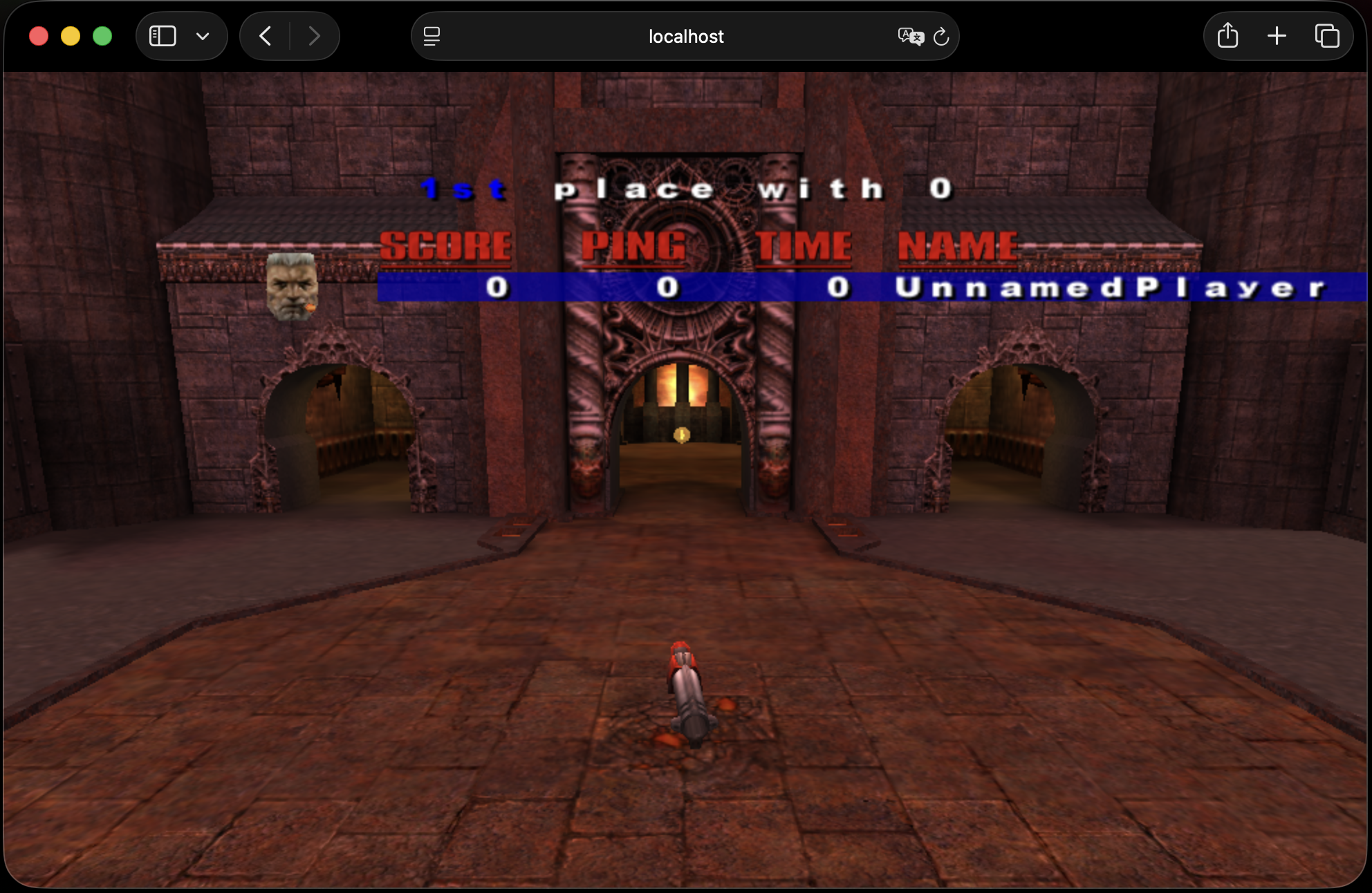
And after downloading the necessary data files you’ll be ready for fragging your friends or co-workers.
Checking the stats in Activity Monitor the observations seems to be consistent with what we now about each tool’s architecture. It seems Docker reserved a lot of memory for one big virtual machine.
| Process | Real Memory Size | CPU usage |
|---|---|---|
| Virtual Machine Service for container-runtime-linux | 1.00 Gb | ~28% |
| Virtual Machine Service for Docker | 6.85 Gb | ~28% |
As expected, when running more containers the Docker Virtual Machine service grows, when using Apple Native Containers more Virtual Machines will be spawned.
Funny story: one morning I opened
my laptop just to see I still had QuakeJS running on the background.
It was great to see the Apple native container barely made a dent in battery
charge while the OS was sleeping. Anyway, it’s always a good idea
to actively manage your containers and images, below are the stop
and clean-up commands I used with container. They’re very similar to what
you would expect with Docker, there’s one difference: you use
docker ps to list containers.
container ls
container stop quakejs
container rm quakejs
container image ls
container image rm quakejs-rootless:latest
Running containerized ollama
Docker Desktop doesn’t support GPUs natively on Mac. Apple Native containers on the other hand should provide direct access to the hardware on Apple Silicon (M-series) for acceleration via Metal. So I decided to compare Docker, container, and a local install of ollama.
To get started I installed the ollama via brew:
brew install ollama
ollama serve
Then on another terminal I ran the llama2 model with the --verbose
option to get some performance information and provided a very simple
test prompt…
ollama run llama2 --verbose
I used a very simple prompt:
>>> tell me a joke

Why don't scientists trust atoms? Because they make up everything! 😂
The ollama serve logs and Activity Monitor confirmed the GPU and the
metal API were being used.
To compare the docker and container performance I used the
official ollama container image.
Notice that I’m mapping a volume with ollama’s data folder to avoid downloading
the model several times. The command line options to do this are the same
in both tools (see below). Keep in mind this will download the model and
start from scratch for the created container, this was intentional as I
was comparing performance.
The default folder for ollama files is ${HOME}/.ollama and for
normal usage you should map it as a volume (-v ${HOME}/.ollama:/root/.ollama)
so model definitions and settings are reused.
container run -d \
  -p 11434:11434 \
  --memory 6g \
  --name ollama \
  ollama/ollama
container exec -it ollama ollama run llama2 --verbose
Although I achieved better performance with Apple Native Containers, ollama wasn’t using the GPU either, according the the logs only the CPU was used. The stats seems to confirm this as well:
| Metric | Container | Docker | Native |
|---|---|---|---|
| Total Duration | 15.231285424s | 20.899204093s | 3.471359458s |
| Load Duration | 42.563833ms | 39.974667ms | 36.232667ms |
| Prompt Eval Count | 26 token(s) | 26 token(s) | 26 token(s) |
| Prompt Eval Duration | 3.866680543s | 3.866771585s | 692.442834ms |
| Prompt Eval Rate | 6.72 tokens/s | 6.72 tokens/s | 37.55 tokens/s |
| Eval Count | 58 token(s) | 22 token(s) | 32 token(s) |
| Eval Duration | 11.307924547s | 16.984443761s | 2.736183s |
| Eval Rate | 5.13 tokens/s | 1.30 tokens/s | 11.70 tokens/s |
Take these numbers with a grain of salt, LLM’s are not deterministic
and the generated output won’t always be the same, but the Eval Rate
should give us a good reference of the performance for each scenario.
It’s possible to disable GPU usage on native ollama by using
/set parameter num_gpu 0 before your prompt, for me this yielded
similar results to Apple Native Container.
Clearly the best option in Mac is still using ollama natively!
Apple native devcontainers
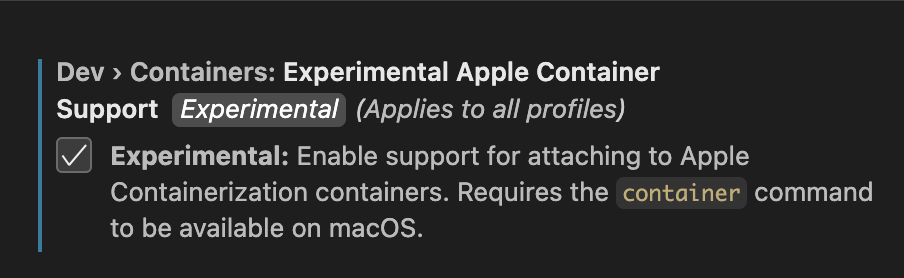
There’s a open VS code issue to Support for the Containerization Framework on macOS, and it’s easy to find the option to enable experimental support in the devcontainers extension. I briefly tested with this blog’s devcontainer.json , Jekyll was up and running and the interactive shell session worked as expected, but strangely the container output was not being captured.
So in conclusion, Apple Native containers felt useful and performant, and I will probably be using them for some tasks. However I am not uninstalling Docker for the time being.